Tag: Python for beginners

  • How to Easily Create a Python Web App with Flask: A Fun Tutorial for Beginners 2025

    How to Easily Create a Python Web App with Flask: A Fun Tutorial for Beginners 2025

    Have you ever wanted to build your own website or web app but felt overwhelmed by where to start? If you know a bit of Python, you’re already halfway there! Flask is a simple, beginner-friendly tool that lets you create a Python web app with Flask quickly and easily. In this tutorial, I’ll walk you through every step to build a basic web app, even if you’re new to web development. We’ll create a small to-do list app, and I’ll explain everything in a way that’s easy to understand.

    How to Easily Create a Python Web App with Flask

    I remember when I first started coding. The idea of building a web app sounded like something only expert programmers could do. But with Flask, I was amazed at how fast I could get a working app up and running. By the end of this guide, you’ll have a functional to-do list app and the confidence to keep exploring web development. Create a Python Web App with Flask Let’s get started!

    What is Flask and Why Use It?

    Flask is a lightweight Python framework for building web apps. Unlike bigger frameworks like Django, Flask is simple and flexible, making it perfect for beginners. It gives you just enough tools to Create a Python Web App with Flask without overwhelming you with complex features.

    Here’s why Flask is great for beginners:

    • Easy to learn: Flask has a small learning curve, so you can focus on coding instead of memorizing rules.
    • Flexible: You can customize your app however you want.
    • Fast to set up: You can have a basic app running in minutes.
    • Great for small projects: Perfect for things like to-do lists, blogs, or personal portfolios.

    For example, when I built my first Flask app, I created a simple note-taking tool in just a few hours. It wasn’t fancy, but it felt amazing to see it work in my browser!

    What You’ll Need to Get Started

    Before we dive into coding, let’s make sure you have everything you need to create a Python web app with Flask. Don’t worry—this setup is straightforward.

    Prerequisites

    • Basic Python knowledge: You should know how to write simple Python code, like variables and functions.
    • A computer with Python installed: Python 3.6 or higher works best. You can download it from python.org.
    • A text editor: Use something like VS Code, PyCharm, or even Notepad++.
    • An internet connection: To download Flask and other tools.

    Setting Up Your Environment

    1. Install Python: If you don’t have Python, download and install it from python.org. Check your version by typing python --version in your terminal or command prompt.
    2. Create a project folder: Make a new folder (e.g., “TodoApp”) to keep your files organized.
    3. Set up a virtual environment: This keeps your project’s files separate from other Python projects. In your terminal, navigate to your project folder and run:
       python -m venv venv

    Activate it:

    • On Windows: venv\Scripts\activate
    • On Mac/Linux: source venv/bin/activate
    1. Install Flask: With your virtual environment active, run:
       pip install flask

    Now you’re ready to start coding! Let’s build a simple to-do list app where users can add and view tasks.

    Step 1: Create Your First Flask App

    Let’s write the basic code to get a Flask app running. We’ll start with a simple “Hello, World!” page to make sure everything works.

    Writing the Code

    Create a new file called app.py in your project folder. Add this code:

    from flask import Flask

    app = Flask(name)

    @app.route(‘/’)
    def home():
    return ‘Hello, World!’

    if name == ‘main‘:
    app.run(debug=True)

    What’s Happening Here?

    • Import Flask: We bring in the Flask library to use its features.
    • Create an app: Flask(__name__) sets up your web app.
    • Define a route: @app.route('/') tells Flask to show “Hello, World!” when someone visits the main page (/).
    • Run the app: app.run(debug=True) starts a local server for testing.

    Running Your App

    1. Save app.py.
    2. In your terminal (with the virtual environment active), run:
       python app.py
    1. Open your browser and go to http://127.0.0.1:5000/. You should see “Hello, World!”.

    If you see that message, congratulations—you’ve just created a Python web app with Flask! When I first saw my app load in the browser, I couldn’t stop smiling. It’s a small step, but it feels huge!

    Step 2: Build the To-Do List App

    Now let’s make our app more useful by turning it into a to-do list. Users will be able to add tasks and see them on the page. We’ll use HTML templates and a simple list to store tasks (for now, we’ll keep it in memory, not a database).

    Setting Up Templates

    Flask uses HTML templates to create the look of your web app. Create a folder called templates in your project folder. Inside it, make a file called index.html:

    <!DOCTYPE html>
    <html>
    <head>
        <title>To-Do List</title>
        <style>
            body { font-family: Arial, sans-serif; margin: 40px; }
            h1 { color: #333; }
            ul { list-style-type: none; padding: 0; }
            li { padding: 10px; background: #f4f4f4; margin: 5px 0; }
            form { margin-top: 20px; }
            input[type="text"] { padding: 5px; width: 200px; }
            input[type="submit"] { padding: 5px 10px; }
        </style>
    </head>
    <body>
        <h1>My To-Do List</h1>
        <form method="POST" action="/">
            <input type="text" name="task" placeholder="Add a new task" required>
            <input type="submit" value="Add Task">
        </form>
        <ul>
            {% for task in tasks %}
                <li>{{ task }}</li>
            {% endfor %}
        </ul>
    </body>
    </html>

    Updating Your Flask App

    Now, update app.py to handle tasks and render the HTML template:

    from flask import Flask, render_template, request
    
    app = Flask(__name__)
    
    tasks = []
    
    @app.route('/', methods=['GET', 'POST'])
    def home():
        if request.method == 'POST':
            task = request.form.get('task')
            if task:
                tasks.append(task)
        return render_template('index.html', tasks=tasks)
    
    if __name__ == '__main__':
        app.run(debug=True)

    What’s New?

    • Templates: render_template('index.html', tasks=tasks) sends the task list to the HTML file.
    • Form handling: request.form.get('task') grabs the task from the form when the user submits it.
    • Task storage: We store tasks in a Python list called tasks. (This resets when the app restarts, but it’s fine for learning.)

    Testing Your App

    1. Save both files.
    2. Run python app.py.
    3. Go to http://127.0.0.1:5000/. You should see a form to add tasks and a list of tasks below it. Try adding a task like “Buy groceries” and see it appear!

    When I built my first to-do app, I spent hours adding silly tasks like “Feed the cat” and “Learn Flask” just to see them stack up. It’s fun and rewarding to see your app come to life!

    Step 3: Add Features to Your App

    Let’s make the app even better by adding a way to delete tasks. This will teach you how to handle more user actions.

    Update the Template

    Modify index.html to add a “Delete” button for each task:

    <!DOCTYPE html>
    <html>
    <head>
        <title>To-Do List</title>
        <style>
            body { font-family: Arial, sans-serif; margin: 40px; }
            h1 { color: #333; }
            ul { list-style-type: none; padding: 0; }
            li { padding: 10px; background: #f4f4f4; margin: 5px 0; display: flex; justify-content: space-between; }
            form { margin-top: 20px; }
            input[type="text"] { padding: 5px; width: 200px; }
            input[type="submit"] { padding: 5px 10px; }
            .delete-btn { background: #ff4444; color: white; border: none; padding: 5px; cursor: pointer; }
        </style>
    </head>
    <body>
        <h1>My To-Do List</h1>
        <form method="POST" action="/">
            <input type="text" name="task" placeholder="Add a new task" required>
            <input type="submit" value="Add Task">
        </form>
        <ul>
            {% for task in tasks %}
                <li>
                    {{ task }}
                    <form method="POST" action="/delete">
                        <input type="hidden" name="task" value="{{ task }}">
                        <input type="submit" value="Delete" class="delete-btn">
                    </form>
                </li>
            {% endfor %}
        </ul>
    </body>
    </html>

    Update the Flask App

    Add a new route in app.py to handle deleting tasks:

    from flask import Flask, render_template, request, redirect, url_for
    
    app = Flask(__name__)
    
    tasks = []
    
    @app.route('/', methods=['GET', 'POST'])
    def home():
        if request.method == 'POST':
            task = request.form.get('task')
            if task:
                tasks.append(task)
        return render_template('index.html', tasks=tasks)
    
    @app.route('/delete', methods=['POST'])
    def delete():
        task = request.form.get('task')
        if task in tasks:
            tasks.remove(task)
        return redirect(url_for('home'))
    
    if __name__ == '__main__':
        app.run(debug=True)

    What’s Happening?

    • New route: /delete handles the delete action.
    • Redirect: After deleting a task, redirect(url_for('home')) sends the user back to the main page.
    • Delete button: Each task now has a form with a hidden input to identify which task to delete.

    Run the app again and try adding and deleting tasks. You’ll see the list update instantly. This is where things start feeling like a real app!

    Step 4: Make Your App Look Better

    Right now, our app works, but it’s pretty basic. Let’s add some simple CSS to make it look nicer. We already included some styling in index.html, but you can experiment with colours, fonts, or layouts. For example, try changing the background color of the page or making the buttons bigger.

    If you want to take it further, you can use a CSS framework like Bootstrap. Just add this to the <head> of index.html:

    <link href="https://cdn.jsdelivr.net/npm/bootstrap@5.3.0/dist/css/bootstrap.min.css" rel="stylesheet">

    Then, update your HTML to use Bootstrap classes. This is optional but can make your app look professional with minimal effort.

    Step 5: Deploy Your App (Optional)

    Want to share your app with the world? You can deploy it to a platform like Heroku or Render. Here’s a quick overview of how to deploy on Render:

    1. Sign up at render.com.
    2. Create a new web service and connect it to your GitHub repository (push your project to GitHub first).
    3. Set the start command to python app.py.
    4. Deploy, and Render will give you a URL to access your app online.

    When I deployed my first app, it was thrilling to share the link with friends and see them use it. It’s a great way to show off your work!

    FAQs

    What is Flask used for in Python?

    Flask is a Python framework for building web apps. It’s great for creating websites, APIs, or small projects like to-do lists or blogs.

    Do I need to know HTML to use Flask?

    Yes, basic HTML helps because Flask uses HTML templates to display content. You don’t need to be an expert—just know how to create simple tags like <h1> and <form>.

    Can I add a database to my Flask app?

    Yes! You can use databases like SQLite or PostgreSQL with Flask. For beginners, start with SQLite using the Flask-SQLAlchemy library.

    Is Flask better than Django?

    Flask is simpler and better for small projects or beginners. Django is more powerful but has a steeper learning curve. Choose Flask if you’re just starting out.

    How do I make my Flask app secure?

    Use secure practices like validating user input, setting environment variables for sensitive data, and using HTTPS when deploying.

    Final thoughts

    Congratulations you’ve just learned how to create a Python web app with Flask! From setting up your environment to building a to-do list app, you now have the skills to start your web development journey. The app we built is simple, but it’s a solid foundation. You can add features like user logins, databases, or better styling as you learn more.

    My advice? Keep experimenting! Try adding new features like task categories or due dates. The more you play with Flask, the more confident you’ll get. If you get stuck, check out the Flask documentation or ask questions on forums like Stack Overflow.

    Now go build something awesome and share it with the world! What’s the next feature you’ll add to your app? Let me know in the comments!

  • Fixing Python Memory Errors: Simple Solutions for Beginners 2025

    Fixing Python Memory Errors: Simple Solutions for Beginners 2025

    If you write Python code, you may see memory errors. These errors happen when your program uses too much memory. But don’t worry. Fixing Python memory errors is not hard. Even beginners can do it.

    Python Memory Errors: Solution for Beginners

    in this article ill guide how to fix Python memory errors with easy tips, real examples, and code. Perfect for beginners

    What is a Python Memory Error?

    A memory error happens when your computer cannot hold all the data your program uses. Your code might stop and show an error like MemoryError. This can happen with big lists, large files, or loops that never end.

    Why Python Memory Errors Happen

    • Your data is too big
    • You forgot to delete old data
    • You keep making new lists or objects
    • Your loops never stop

    How to Fix Python Memory Errors: Simple Solutions for Beginners

    1. Use Generators Instead of Lists

    Lists hold everything in memory. Generators give you one item at a time. This saves memory.

    def read_big_file(filename):
        with open(filename) as f:
            for line in f:
                yield line
    
    for line in read_big_file('big_file.txt'):
        print(line)
    

    Tip: Use yield to fix Python memory errors when working with big files.

    2. Process Data in Chunks

    If you read big files or lists, break them into small parts.

    chunk_size = 100
    for i in range(0, len(big_list), chunk_size):
        batch = big_list[i:i+chunk_size]
        # process batch
    

    3. Delete Unused Data

    Use del to free memory you don’t need.

    data = [i for i in range(1000000)]
    # done with data
    del data
    

    4. Use Better Data Types

    Sometimes a set or dict uses less memory than a list. Try them when possible.

    5. Check Infinite Loops

    If your loop never stops, it can eat memory fast. Check loop conditions to fix Python memory errors.

    6. Close Files and Connections

    Always close files when done.

    f = open('data.txt')
    data = f.read()
    f.close()
    

    Or use with open() so it closes by itself.

    7. Use Memory Profiler Tools

    Use memory_profiler to find memory issues.

    from memory_profiler import profile
    
    @profile
    def my_function():
        big_list = [i for i in range(1000000)]
        return sum(big_list)
    
    my_function()
    

    Real Example: Reading Big CSV File

    Sometimes you need to read big CSV files. If you read it all at once, you might get a memory error.

    Instead, read line by line.

    import csv
    
    def read_csv(filename):
        with open(filename, newline='') as csvfile:
            reader = csv.reader(csvfile)
            for row in reader:
                print(row)
    
    read_csv('big_data.csv')
    

    This way you fix Python memory errors.

    How to Avoid Memory Errors in the Future

    • Write clean code
    • Test with small data first
    • Watch for loops that never stop
    • Delete old data
    • Use tools to check memory use

    FAQs

    What is a Python memory error?

    It means your code uses too much memory.

    How do I fix Py memory errors?

    Use generators, delete data, process in chunks.

    What tools can I use?

    Use memory_profiler and tracemalloc to find memory issues.

    Can beginners fix Python memory errors?

    Yes. Start with small steps and simple tools.

    Why do loops cause memory errors?

    If they never stop or keep making new data, they can fill memory fast.

    Conclusion

    Fixing Python memory errors takes time, but you can do it. Use simple tricks like deleting data, using generators, and checking loops. Always test your code. Keep learning and you will fix Python memory errors faster.

  • Port Scanner in Python – 5 Easy Steps for Beginners

    Port Scanner in Python – 5 Easy Steps for Beginners

    Are you curious about how network tools like a Port scanner in Python work behind the scenes? Maybe you’ve heard of port scanners like Nmap and wondered how they function or better yet, how you could build one yourself. If you’re learning Python or diving into cybersecurity, creating your own port scanner is a hands-on way to understand network behaviour, strengthen your programming skills, and sharpen your security awareness.

    This guide will walk you through how to build a basic yet functional port scanner using Python. It’s beginner-friendly, doesn’t require advanced coding skills, and helps you understand key networking principles along the way.

    What Is a Port Scanner and Why Build One?

    A port scanner in python is a tool that scans a target computer or server to see which network ports are open. Open ports are essentially doors through which data can enter or leave a system. Each port corresponds to a specific service—for example, port 80 is commonly used for HTTP (web traffic), while port 22 is for SSH (remote login).

    Why should you build your own port scanner?

    • You’ll understand how scanning tools work under the hood.
    • It’s a practical Python project you can build and improve.
    • Great for security testing in a home lab or sandbox environment.

    Let’s dig in!

    Tools You Need Before You Start

    To follow this tutorial, you’ll need:

    • Python 3 (most systems come with it pre-installed)
    • A text editor like VS Code, Sublime Text, or PyCharm
    • Basic knowledge of Python syntax
    • Terminal/command-line access

    You can install Python from python.org if you haven’t already.

    Understanding How the Port Scanner Works

    Before jumping into code, let’s quickly outline what your scanner will do:

    1. Accept a target (hostname or IP address).
    2. Attempt to connect to a range of ports (typically 1 to 1023).
    3. Report which ports are open.
    4. Handle errors gracefully (like when you press Ctrl+C to cancel).

    Writing the Port Scanner in Python (Step-by-Step)

    Let’s break the code into parts for easier understanding.

    Step 1: Import Required Modules

    These modules allow us to handle network connections, system commands, and timestamps.

    import socket
    import sys
    from datetime import datetime
    
    • socket: For network connections
    • sys: To accept user input from the command line
    • datetime: To track when the scan starts

    Step 2: Accept the Target Address

    Use command-line arguments to get the target IP or hostname.

    if len(sys.argv) == 2:
        target = socket.gethostbyname(sys.argv[1])
    else:
        print("Usage: python3 scanner.py <hostname or IP>")
        sys.exit()
    

    Tip: Always use IP addresses in real-world scans to avoid DNS resolution errors.

    Step 3: Print Scan Information

    This makes the script feel professional and readable.

    print("=" * 50)
    print(f"Scanning Target: {target}")
    print(f"Scan Started At: {datetime.now()}")
    print("=" * 50)
    

    Step 4: Perform the Port Scan

    Now comes the main logic.

    try:
        for port in range(1, 1025):
            s = socket.socket(socket.AF_INET, socket.SOCK_STREAM)
            socket.setdefaulttimeout(0.5)  # Adjust for speed
            result = s.connect_ex((target, port))
            if result == 0:
                print(f"Port {port} is OPEN")
            s.close()
    

    This loop:

    • Iterates over ports 1 to 1024 (well-known ports)
    • Checks if a connection to each port is successful
    • Reports open ports

    Step 5: Handle Interruptions

    A clean exit when a user hits Ctrl+C is good practice.

    except KeyboardInterrupt:
        print("\nScan interrupted by user.")
        sys.exit()
    
    except socket.gaierror:
        print("\nHostname could not be resolved.")
        sys.exit()
    
    except socket.error:
        print("\nCould not connect to server.")
        sys.exit()
    

    Real-World Use Case Example

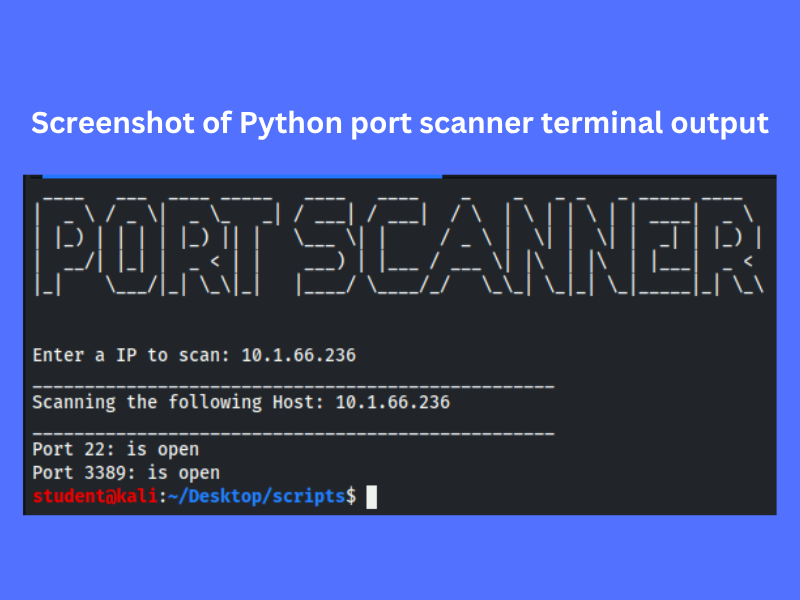
    Imagine you’re a network administrator. You suspect one of the office devices is running unexpected services. Rather than install a bulky tool, you run:

    python3 scanner.py 192.168.1.15
    

    You quickly find port 21 (FTP) open on a device that shouldn’t be sharing files. This is a red flag—and you discovered it with your own tool!

    Screenshot of Python port scanner terminal output

    Comparison With Nmap

    FeatureYour Python ScannerNmap
    Simplicity✔ Easy to understand❌ Complex syntax
    Customizable✔ Modify as you wish✔ Extensive options
    Speed❌ Slower✔ Highly optimized
    GUI Available❌ Terminal only✔ Zenmap GUI optional
    Learning Value✔ Great for Python practice❌ Less about programming

    While Nmap is more powerful, your Python tool gives you a learning advantage and flexibility.

    Ideas to Improve Your Port Scanner

    Once your basic scanner is working, here are a few ways to enhance it:

    1. Multithreading for Speed

    Use Python’s threading module to scan multiple ports simultaneously.

    2. Scan Specific Port Lists

    Allow users to enter custom port ranges or lists (e.g., 22, 80, 443).

    3. Save Results to File

    Log the output to a .txt file for future reference.

    with open("scan_results.txt", "a") as file:
        file.write(f"Port {port} is OPEN\n")
    

    4. Add a Banner

    Use pyfiglet to display a fancy ASCII title when the script runs.

    Ethical Reminder

    Use responsibly!
    Scanning systems without permission is illegal and unethical. Only scan networks or devices you own or have been explicitly authorized to test.

    FAQ

    What is a Python port scanner?

    A Python port scanner is a script or program written in Python that checks which ports on a target machine are open or closed. It’s commonly used in network diagnostics, cybersecurity testing, and learning how socket programming works.

    Is it legal to use a Python port scanner?

    Yes, it’s legal only if you scan devices or networks you own or have permission to test. Unauthorized scanning of external systems can violate privacy laws and may be considered illegal in many jurisdictions.

    Do I need to install any special libraries to build a Python port scanner?

    No external libraries are required. You can create a basic port scanner using Python’s built-in socket and sys modules. However, you can enhance your tool with libraries like threading for performance or pyfiglet for UI design.

    How many ports should I scan with my Python script?

    For most beginner projects, scanning the well-known ports (1–1024) is a great start. These ports are commonly used by popular services like HTTP (80), HTTPS (443), SSH (22), and FTP (21).

    Can I use my Python port scanner for ethical hacking?

    Yes, learning to build and use a Python port scanner is an excellent way to get started in ethical hacking. It teaches you how to discover vulnerabilities, interpret open ports, and understand how services are exposed on networks.

    How do I improve the performance of my Python port scanner?

    To improve speed, reduce the socket timeout (e.g., from 1 second to 0.01) or implement multithreading using Python’s threading module. This allows the script to scan multiple ports simultaneously.

    Can I scan domain names instead of IP addresses?

    Yes, your Python port scanner can resolve domain names to IP addresses using socket.gethostbyname(). However, scanning IP addresses directly is more reliable, especially on local or private networks.

    How do I save the scan results to a file?

    You can use Python’s with open() function to write results to a .txt file during the scan. This is useful for auditing or documenting scan activity.

    Final Thoughts

    Creating your own port scanner in Python is not only fun—it’s educational. You learn how network sockets work, how to handle exceptions, and how to build real cybersecurity tools from scratch. It also opens the door to more advanced concepts like packet crafting, vulnerability detection, or network mapping.

    Whether you’re a Python learner, IT student, or budding cybersecurity analyst, this project gives you hands-on experience that books and theory simply can’t match.

    Want more beginner-friendly Python security tools? Bookmark CyberSavvyHints.com and stay updated!